
Learn how to bind console commands and game functions to keys, how to connect your lobby to your favourite server and more!
Customize this file? Why?
- You can bind commands to keys
Let’s say you want to kill yourself with a single keypress. On my server you would do this by open chat and enter!kill. With one additional line in your autoexec.cfg this can be bound to a key of your choice. - You can change “regular key settings” to special keys according to your physical keyboard and localisation
- other usefull stuff
Just see my example autoexec.cfg below. - You can configure your preferred server, your game should run on
Normally, if you are in a lobby and you are the lobby leader (means you can change game settings) and pressStart Game, L4D will start to search for a suitible server itself.
If you configured it before, L4D will first ask your preferred to host it. If it doesn’t find your preferred server or the server allready holds another game session, the regular search and connect procedure takes place.
Navigate to autoexec.cfg on your computer
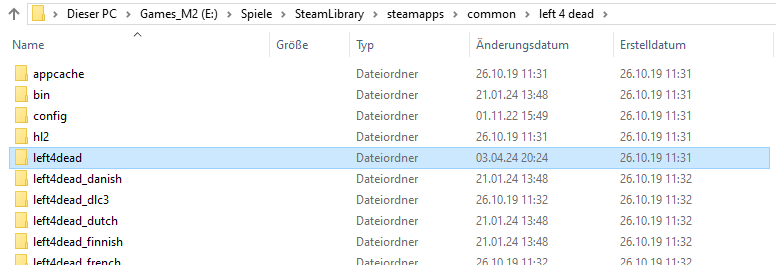
If you don’t even have a clue, where to find the location of your L4D-installation on your computer, follow this easy 5 steps.
You need to nagivate from here to left4dead and then to cfg.
Inside this folder you will find autoexec.bat.
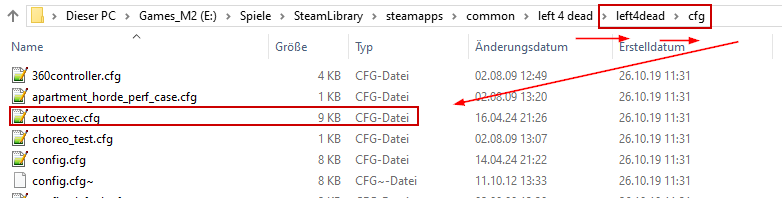
In the picture above autoexec.cfg is located in:E:\Spiele\SteamLibrary\steamapps\common\left 4 dead\left4dead\cfg
Before you edit autoexec.cfg
this file gets executed by L4D each time you launch the game. It is NOT executed, when you are in a lobby and click on Start Game.
- Make sure that the game is NOT RUNNING while you edit!
I have seen issues like ‘lost changes’ and worse: corrupted file. - So you better have a backup of this file.
Best time to save a copy is before your first changes and after major customizing.
How to edit autoexec.cfg
Any texteditor will do. If you often edit textfiles you should know the open source texteditor notepad++, which can be downloaded here. If not, Windows comes with Notepad, which is ok for our L4D-needs.
If you are not used on how to open and edit a file as text, read on.
right clickon the fileautoexec.cfg- choose
open with... - look for “
Notepad” or “Editor” and click it
Now you can edit the file and save it, when done.
Example autoexec.cfg with comments
######### EXAMPLE autoexec.cfg

// try kNiLs server first
mm_dedicated_force_servers 178.203.25.243:27015
sv_search_key knilsserver01

// my avatar should scream for help, when I press the left arrow key
// list of vocals here: https://steamcommunity.com/sharedfiles/filedetails/?id=1433254329
bind "LEFTARROW" "Vocalize Playergrabbedbytongue"

// SEPECIAL commands

// open the onscreen admin menu
bind "a"  "sm_admin"
// show server browser (this is an not well known native function of L4D)
bind "F5" "openserverbrowser"
// open the ingame console window
bind "F8" "toggleconsole"
// will quit the game WITHOUT ANY additional prompt
bind "F4" "quit"
// quick connect to kNiLs server - DO NOT USE THIS! YOU WILL KICK PLAYERS!
bind "F9" "connect knil.chickenkiller.com"
// my favorive key :-)
bind "PGUP" "say !kill"			// Kill

// some example key bindings - helps L4D to accept keys at the nummeric block of my german keyboard
bind "KP_END" "+moveleft"
bind "KP_PGDN" "+moveright"
bind "KP_DOWNARROW" "+back"
bind "KP_PLUS" "+use"
bind "KP_5" "+jump"
bind "RIGHTARROW" "+duck"

// Spray my logo - thanks to Ruthless for all the nice GFX!
bind "PGDN" "impulse 201"

// BIND MOUSE-BUTTONS
bind "MOUSE1" "+attack"
bind "MOUSE2" "+forward"
bind "MOUSE3" "impulse 100"
bind "MWHEELUP" "invprev"
bind "MWHEELDOWN" "invnext"

// WEAPONS
bind "UPARROW" "slot1"			// Primary
bind "KP_DEL" "+reload"
bind "KP_INS" "+zoom"			// zoom sniper
bind "KP_UPARROW" "slot3"		//molly
bind "KP_PGUP" "slot4"			// Meds
bind "KP_HOME" "slot5"			// pills
bind "KP_ENTER" "+attack2"

// TALK and Quick-Commands
bind "DOWNARROW" "+voicerecord"
bind "KP_LEFTARROW" "+mouse_menu QA"
bind "KP_RIGHTARROW" "+mouse_menu Orders"

// Chat Messages
// bind "1" "say Hi there! :-)"
// bind "2" "say Have fun!"
// bind "3" "say Hello friend! :-)"
// bind "4" "say Please play as a team and stay together. :-)"
// bind "5" "say Please wait for all players are ready! :-)"
// bind "6" "say STOP!!!! WE NEED TO PREPARE !!!"
// bind "7" "say Hey, watch your fire! I'm human ! :-)"
// bind "8" "say STOP FRIEDLY FIRE and we can win this! :-)"
// bind "9" "say !!!! STOP FRIENDLY FIRE OR I WILL BAN YOU !!!"
// bind "0" "say Nice game but I got enough for today. CUS & have fun!!! BB."