
Locating the L4D folder on your computer will enable you to complete certain important tasks.
For example:
- installing or removing custom campaign maps (known as addons)
- edit your autoexec.cfg file (this is where you can bind commands to certain keys in a file)
- and other cool stuff.
Locating your L4D folder on Windows:
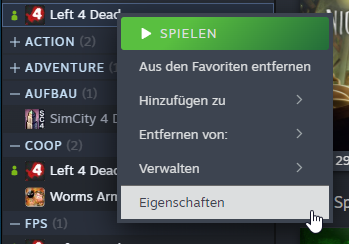
Open Steam, go to your L4D game, right click then click on properties:
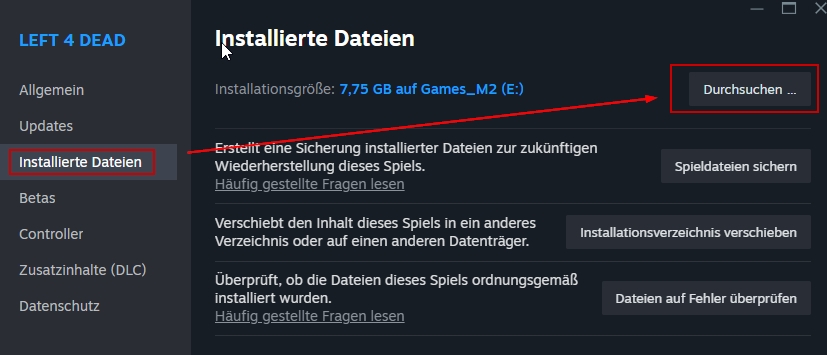
Now click on installed files then click browse:
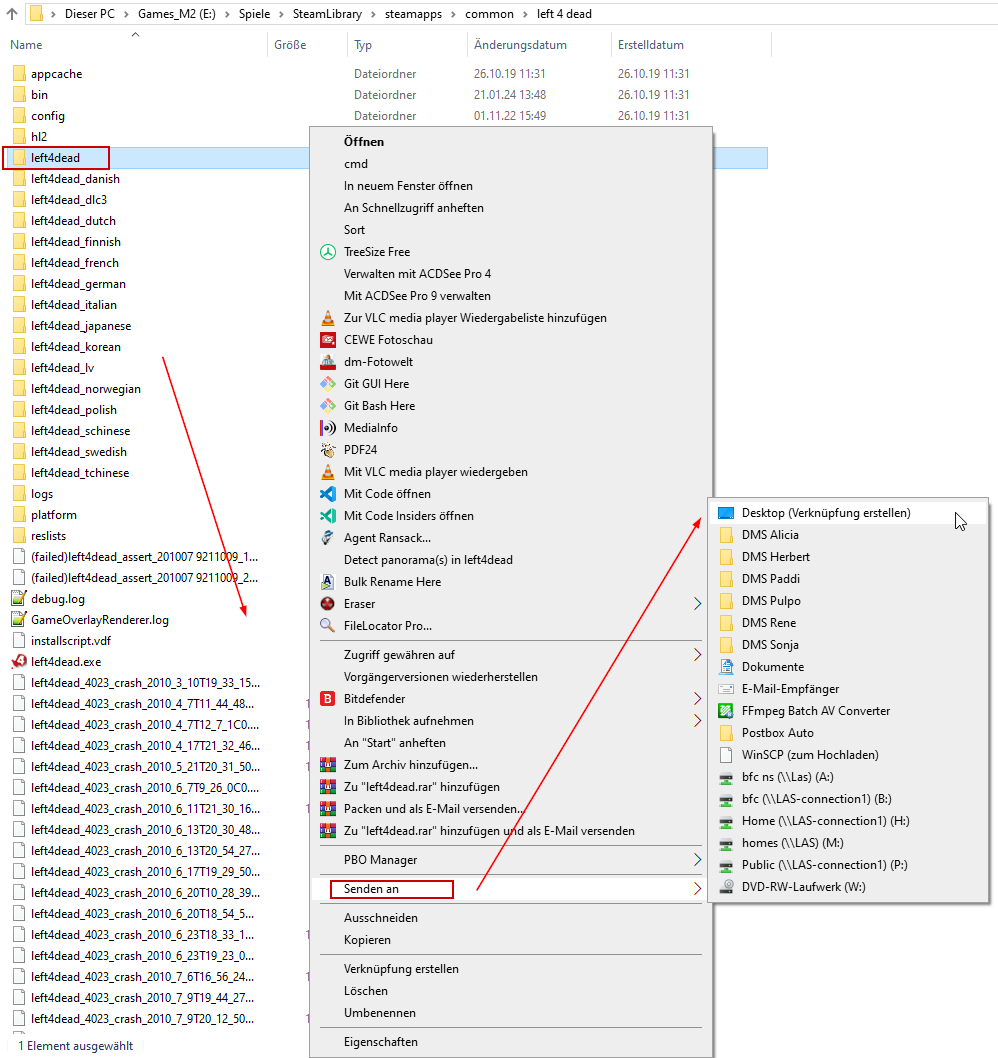
Windows File Explorer will open then (screenshot below).
In this example, the L4D folder is installed here:E:\Spiele\SteamLibrary\steamapps\common\left 4 dead\left4dead\cfg
Now create a shortcut to your L4D folder, so you have easy access to it should you want to make changes in the future.
To create a shortcut on your Desktop, do these three clicks (screenshot below, from left to right):
- right click on left4dead
- scroll down to the ‘send to’ option,
- select your own desktop (or somewhere else on your computer you can easily find it).
locate it on macOS
- Open the App Finder on your Macintosh.
or - Use your macOS Steam-Client the same way it is shown for Windows above.
Please make some screenshots for me / this tutorial! Thanks.